What is a Moodle/eClass Badge?
Badges are a good way of celebrating achievement and showing progress. Badges may be awarded based on a variety of chosen criteria and may be displayed on a user's profile or pushed to their Badge backpack and public badge collections in their backpack will display in their Moodle profile.
There are two categories of badges:
Site badges - available to users site-wide and related to the site wide activities, like finishing a set of courses.
Course badges - available to users enrolled in the course and related to the activities that happen inside the course.
This article will focus on Course Badges.
Creating Course Badges
Please see step-by-step instructions below on how to create Course Badges:
- Sign in to eClass using your Passport York username and password.
- On your eClass Dashboard, select the course you wish to create badges for.
- Click More->Badges on the top menu
- Click Add a new Badge, as shown below:

- The New badge screen will appear, with these parameters:
Badge details- Add a name and description and upload your badge here.
- A badge version and language may be added, along with information about the author of the image used for the badge.
-
Badge expiry
- Set a date here if the badge will cease to be valid after a certain date. Leave it to never if you want the badge to be permanently displayed.
- When the settings are saved, you are then taken to the Manage badges screen where you can decide the criteria for awarding the badge along with other optional information
- Enter the Badge details, then click Create badge at the bottom of the page.
- After you create the badge, you can add badge criteria.
-
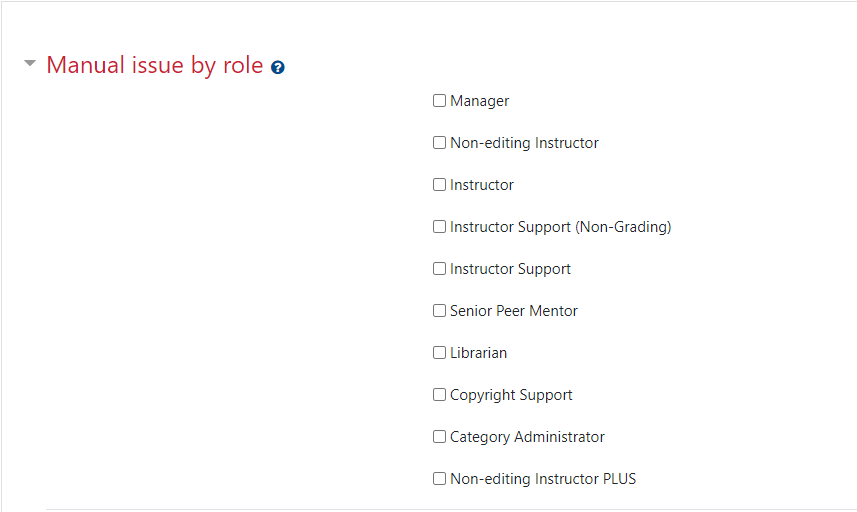
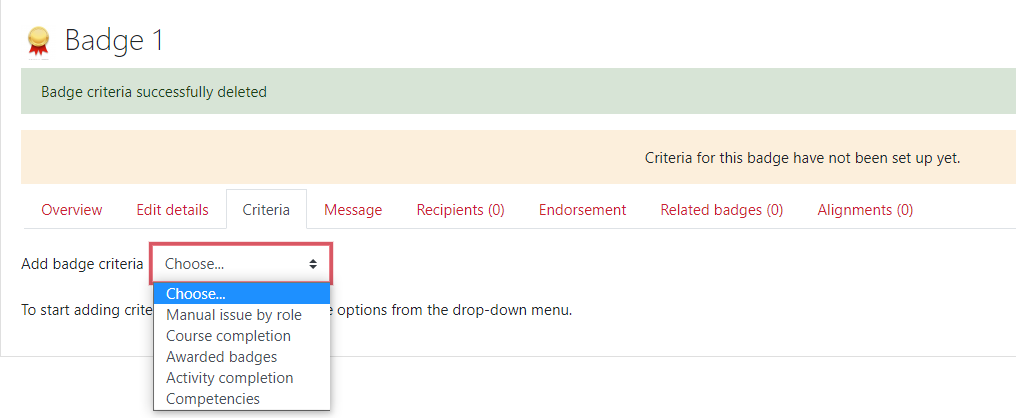 When selecting Manual completion by role, you can choose the role you wish to award the badge, so for example, a teacher could allow a non-editing teacher to award badges in the course:
 For badges to be awarded for course or activity completion, Completion tracking must be enabled the course.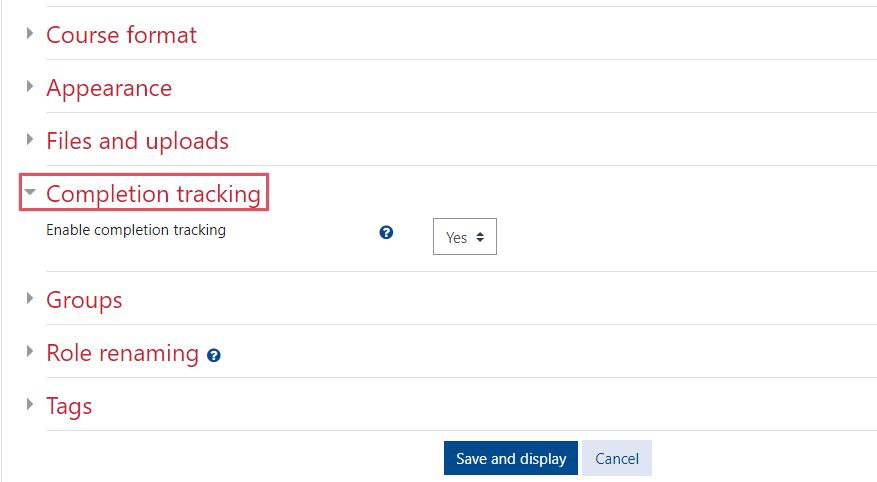
- Once criteria have been set, you are returned to the Manage badges screen where you must "enable access" for the badge to be available:

-
Course Badges Settings
Individual user settings
A user can manage badges by following the steps below:
- Click your name on the top right corner of their eClass page
- Click Preferences (1)
- Click Manage badges (2)
- A user can view available course badges from Navigation column on the left side of the eClass course page, as shown below:

Managing badges
Managing course badges
- Instructors will see a Badges section from the More menu item.
- New badges may be added by clicking the Add a new badge button, as shown below:

- Clicking the name of an existing badge allows you to view its details and make changes if it is not enabled (you can enable it right at this screen), as shown below:

Individual user badge management
Users may manage their site and external badges by clicking on their username initials (or picture) in the menu top right:
From the menu, select Preferences, then Badges > Manage badges. From here, they can view, search for and download badges.

Deleting badges
To delete a badge, from the Badges section, click on the ellipses of the badge you want to remove and select Delete:
Another page will load with these options:
Delete, but keep existing issued badges -if this option is chosen, then the badge will no longer be available but students who have earned the badge will still have it displayed on their profiles.
Delete and remove all existing issued badges - if this option is chosen, then the badge will no longer be available and students who earned the badge will no longer have it displayed on their profiles.
Awarding a badge
- From the Badges page, click on the badge you want to award:

- If the badge isn't enabled, press on Enable access

- Then, scroll down to Award badge

You may award the badge by selecting a candidate on the left side of the screen, and clicking Award badge:
Revoking a badge
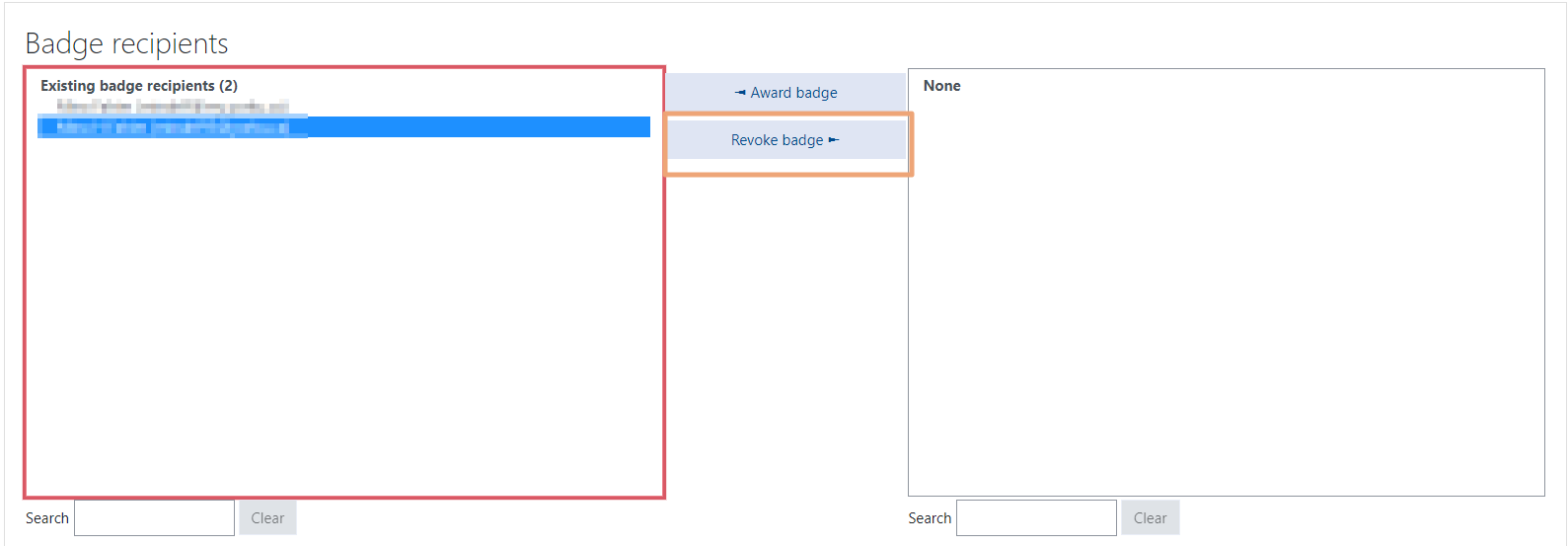
If a badge is awarded my mistake, it may be revoked from the 'Badge recipients' page
-
From the Badges page, click on the badge you want to revoke:
- Then, scroll down to Award badge

- Select the name you wish to revoke the badge for, and click on Revoke badge
Earning badges
- Once all criteria are set and badge creator is happy with badge details and settings, site users can start earning it. For users to be able to earn a badge, a badge creator/administrator needs to enable access to this badge on a badge overview page or "Manage badges" page (as shown on the picture).
- Normally badges are awarded to users automatically based on their actions in the system. The completion criteria of an active badge are re-calculated every time an event such as completion of a course or activity, or updating user profile happens. If a user has completed all necessary requirements they are issued a badge and sent an email notification.
Badges FAQ
Can more than one instructor in a course award the same badge?
It's not the user who issues the badge, but a role. Users with multiple roles will have an option to use both of them to issue badges. If the badge is awarded twice by different roles, both roles are displayed and criteria (ALL/ANY) is given. In some cases it will be required for a badge to be awarded by several different roles. When there are, let's say, three teachers in the course and they go to award a badge as a teacher, each of them will see the list of users who already got the badge from a teacher, so they won't need to award the badge again.
What size is a badge?
A badge is displayed with dimensions 100 X 100 pixels. However, a larger image may be uploaded, which will then be cropped to be a square, and then resized. It should maintain a 1:1 aspect ratio.
Can I award a badge based on a specific grade?
There are two ways of awarding a badge based on a specific grade.
Method 1:
Set a passing grade for the quiz in the gradebook.
Method 2:
- Create a page resource and set the restrict access conditions so that it only appears if the user obtains a certain activity grade or course total
- Set the activity completion for the page as View
- Set the badge criteria such that the page has to be completed (i.e. viewed)
Which roles can see which badges?
See this forum post on viewing badges
Can I change a badge image once awarded?
The short answer is 'no', but see this forum post on changing badge images for more information.
Can I revoke a badge once it has been awarded?
Yes - see the section on revoking a badge in Using badges.