Add Teaching Assistant (TA) to your course
If you want to give your TA access to grade student activity in your course without allowing them to change content or add activities, read on. Otherwise, if you'd like them to have full editing capabilities in your course, refer to our section on how to add an Instructor.
- Click on Participants in the top row, a list of current users, if any, should display.

- Click on the Enrol users button to add a user to your course.

-
Enter the user’s email address or name in the Search field, a list of users matching your search criteria will be displayed in a drop down. Select the user you wish to add and choose Non-editing Instructor from the Assign role dropdown menu.

If you would like to add a TA as an instructor, simply select Instructor from the drop-down menu instead of Non-editing Instructor.
- Select the Enrol selected users and cohorts button to add them to your course.
- Rinse and repeat to add additional users.
Delete
Add another Instructor to your course
Giving a user full Instructor rights means they have the same permissions as you to edit content, create activities, grade students, etc.
- Click on Participants in the top row, a list of current users, if any, should display.

- Click on the Enrol users button to add a user to your course.

-
Enter the user’s email address or name in the Search field, a list of users matching your search criteria will be displayed in a drop down. Select the user you wish to add and choose Instructor from the Assign role dropdown menu.

- Select the Enrol selected users and cohorts button to add them to your course.
- Rinse and repeat to add additional users.
What are the other roles for?
- Deferred Student: A deferred student can access a hidden course. This is useful when a student requires access to a course to prepare for a deferred exam.
- Course Import: This role allows the user to copy your course content and also provides high-level overview of your course.
- Auditor: This role can view content and activities made available by the Instructor but can't participate in these activities.
- Librarian: This role can be used to add a Librarian to your course. They can access your course to review course content but will be restricted from seeing student grades.
- Accessibility Support: This role is typically given to note takers that need access to your course for the purpose of taking notes on behalf of a student.
- Altexam: This role gives read-only access to course content and allows the user to set a user or group override in a quiz, assignment, or lesson activity. This role does not allow them to see grades or participants enrolled in the course.
Change a users role
Oops, you've given someone the wrong role and now need to change it.
- From the Participants page find the user in the list. (TIP: If the enrolled users list is long, use the filter options to customize.)
- Select the Pencil (edit) icon next to the user's name in the Roles column to change the role.
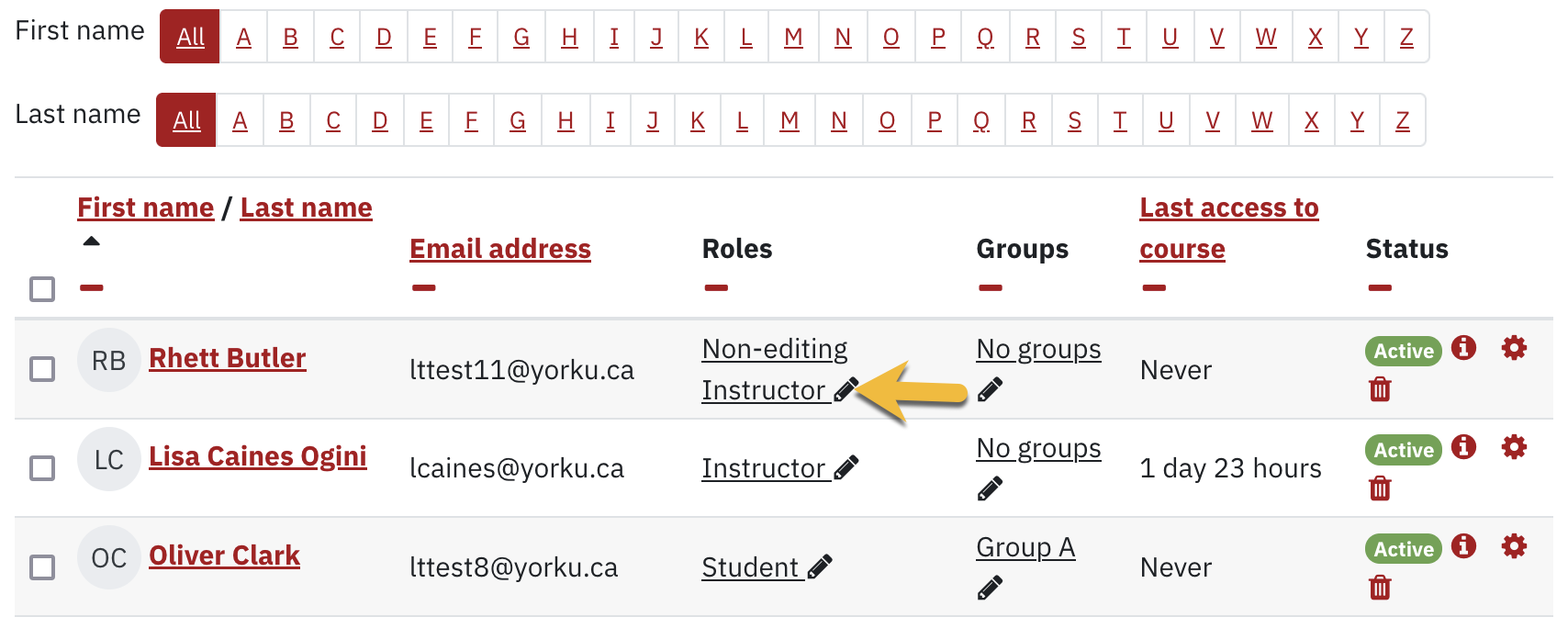
- Select the desired role by typing it into the drop down box:

- Remove any unwanted roles by clicking the X (1)

- Save any changes by pressing the diskette icon (2)
Remove a user from the course
- From the Participants page find the user in the list. (TIP: If the enrolled users list is long, use the filter options to customize.)
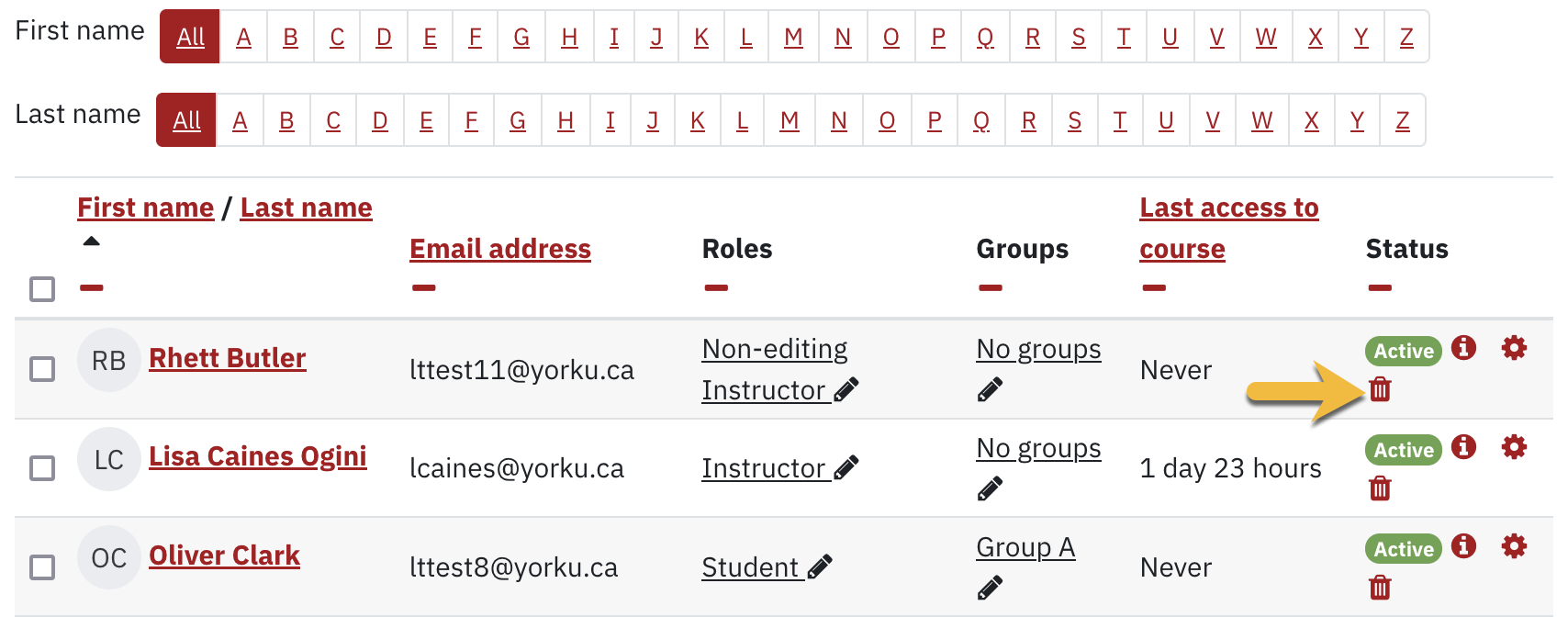
- Select the Unenrol (trash) icon in the Status column and confirm the unenrolment in the pop-up by clicking on Unenrol to remove the user from the course.